
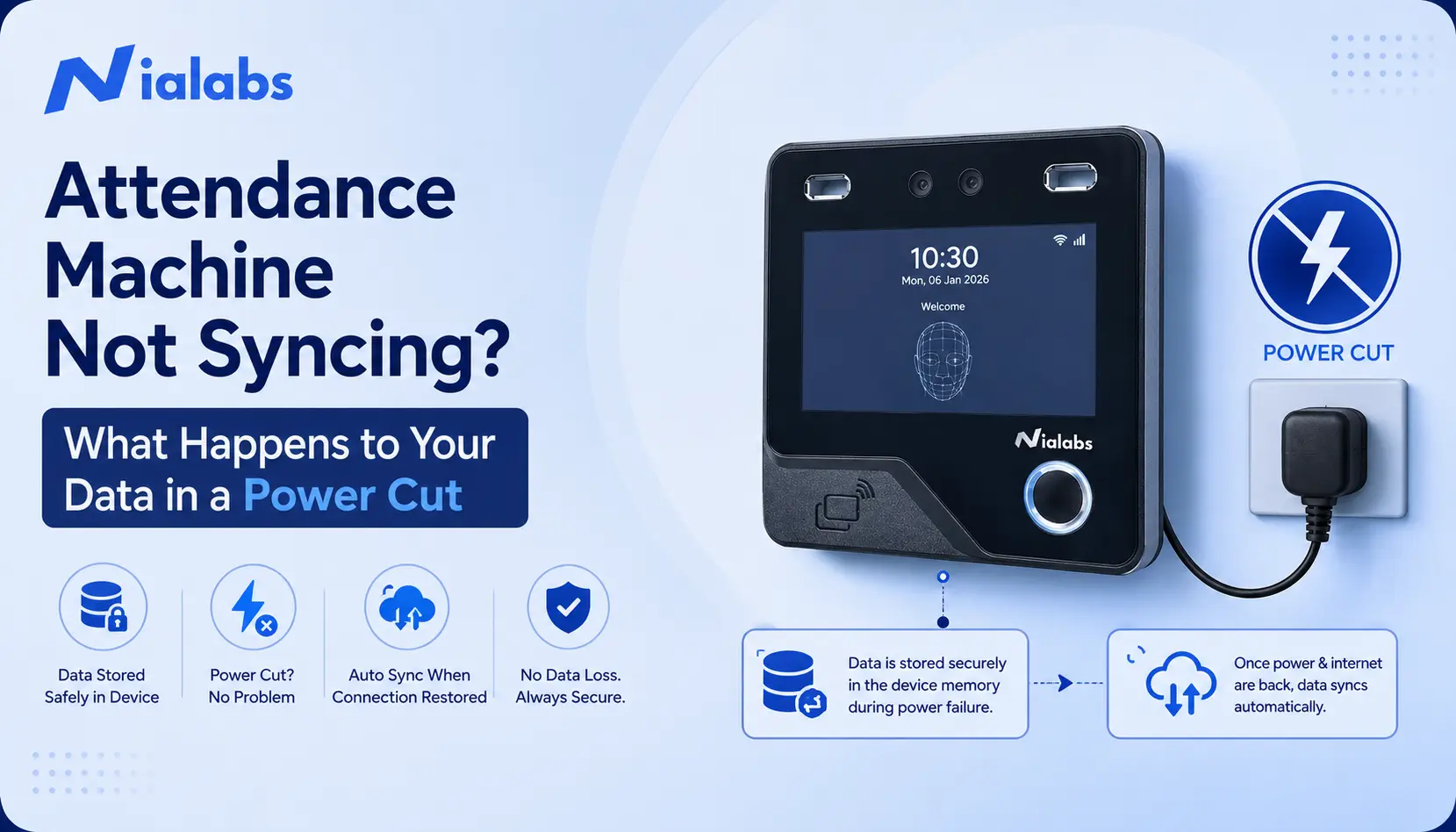
Short answer: No, a power cut does not delete your attendance data. Every punch is written to the device's onboard memory the instant an employee clocks in before it ever reaches the cloud. When power returns, the device automatically pushes the backlog to your dashboard with the original punch timestamp intact. You only lose a record if the device has no onboard buffer, or if logs were manually deleted before the last successful sync.
Key takeaways
-
Punches are stored on the device's local memory first, then pushed to the cloud power loss pauses sync, it doesn't erase data.
-
Nialabs terminals (NiaFace A80 / A90) hold up to 5,00,000 offline punch logs and 5,000–50,000 face templates depending on model, enough for several weeks offline.
-
90% of “sync failed” cases are internet, IP, or clock issues not a broken device.
-
A ₹2,500–₹4,000 600VA UPS keeps most terminals running through nearly any outage without ever dropping to offline mode.
What Actually Happens to Your Attendance Data During a Power Cut
Where a punch is stored before it reaches the cloud
When an employee clocks in on any attendance machine, the punch employee ID, timestamp, and verification type (card, fingerprint, or a face recognition attendance system) — is written to the device's own memory first. Only after that does it upload to the cloud. If the machine loses power or internet mid-shift, that punch is not lost, because it was never dependent on the connection to begin with, it's already sitting safely on the device.
How many records a device can hold offline
Offline attendance sync capacity is usually quoted in two numbers: punch logs and enrolled face templates. On Nialabs terminals, that works out to real, published specs the NiaFace A80 holds up to 5,00,000 offline punch logs and 5,000 face templates, while the higher-capacity NiaFace A90 stores up to 5,00,000 logs and 50,000 face templates. For a medium office, that's comfortably several weeks away from any connection before the buffer starts to fill.
What happens the moment power returns
When the device reconnects, it checks the last file it synced successfully, then pushes every subsequent punch through in chronological order. The punch timestamp the exact moment an employee clocked is locked in at that instant and stays permanently accurate, regardless of when your ERP or payroll system actually reads it via real-time monitoring.
Attendance Not Syncing to Cloud? 7 Real Causes, Ranked by How Often They Happen
If your dashboard shows no new punches but the device is clearly powered on, it's almost never data loss it's one of these seven things:
1. Internet is down, not the power
Symptom: Screen is on, punching works fine, nothing appears on the dashboard.
Cause: The router or ISP connection dropped while the device itself stayed powered.
Fix: Reboot the router before touching the attendance machine.
2. Static IP / DHCP conflict after a router reboot
Symptom: Was syncing fine yesterday, stopped today with no visible changes.
Cause: The router reboot handed out a fresh IP, so the device's saved static configuration no longer matches.
Fix: Recheck the device's network settings either set the router to reserve the same IP, or switch the device to auto-obtain (DHCP).
3. Device clock drift after an extended outage
Symptom: Punches go through, but land with the wrong date/time on the dashboard.
Cause: A long power-down period reset the device's internal clock.
Fix: Manually resync the device time before the next sync cycle runs.
4. Local memory is full
Symptom: Device refuses new punches even in offline mode.
Cause: The device was offline longer than its buffer could hold, and no one exported logs via USB in the meantime.
Fix: Extract logs via USB and free up space so new punches can record again.
5. Server or cloud credentials/API endpoint changed
Symptom: Every device on-site fails to sync at once, not just one unit.
Cause: Cloud password or attendance API keys/endpoints were changed on the IT side without updating the devices.
Fix: Contact whoever manages the cloud account and re-verify the credentials.
6. Wi-Fi signal too weak at the mounting point
Symptom: Sync works, then drops intermittently with no clear pattern.
Cause: Common at factory gates, warehouse entrances, or any mounting point far from the wireless router.
Fix: Add a Wi-Fi extender near the device, or switch that unit to wired LAN.
7. SIM data pack expired on a 4G-connected device
Symptom: A remote or mobile install (bus, site office) stops syncing entirely, while the local network is fine.
Cause: The SIM's data allowance ran out and wasn't topped up.
Fix: Check the SIM balance/recharge status before assuming the hardware has failed.
Fix It in 10 Minutes: Attendance Machine Sync Recovery Checklist
Work through these in order cheapest and fastest checks first, no IT knowledge required:
-
Check the indicator lights on the device. If they're off, the unit itself has lost power and restore power first.
-
Unplug the router, wait 10 seconds, plug it back in. This alone resolves most sync failures.
-
Check the network icon on the device. A weak signal only slows sync, it does not touch already-recorded punches.
-
Wait 5 minutes. Devices run an automatic sync schedule and may simply be mid-retry.
-
Check the “last synced” timestamp on the dashboard to see exactly how far back the gap goes.
-
Still stuck? Export via USB. Nearly every device has a pen-drive export option, pull the punch log file and import it manually on the dashboard. Nothing is lost.
-
Multiple devices down at once? It's almost always server-side and loop in IT to check authentication or the API endpoint rather than troubleshooting each unit.
Power Cut vs. Internet Outage: Not the Same Problem
|
Power Cut |
Internet Outage |
|
|
Punches still recorded? |
No, device is off |
Yes, stored locally |
|
Data at risk? |
No, once power returns |
No, buffer holds it |
|
Recovers automatically? |
Yes, on power restore |
Yes, on reconnect |
|
Action needed |
None, usually |
Check router / SIM if delayed |
A power cut pauses the device entirely and no new punches record until power is back. An internet outage is milder: the device keeps recording punches locally, it just can't upload or back them up until the connection returns.
What Happens to Backup/Offline Data When an Attendance Machine Doesn’t Sync to the Cloud?
This only becomes a real problem if the device runs out of memory, or if there was never a buffer in the first place in which case old logs can start getting overwritten. After an unusually long outage, it's safer to manually pull logs via USB rather than wait for auto-sync to catch up. For most Indian offices and schools, though, the default behaviour handles it without any intervention.
How to Make Sure You Never Lose Attendance Data Again
Right-size your UPS backup
An average biometric terminal draws well under 10W, so even a small 600VA UPS can keep a device running for hours through an outage, typically enough to avoid dropping into offline mode at all. A standard 600VA unit currently costs roughly ₹2,500–₹4,000, a small upfront cost against the disruption of a dead entrance terminal during peak punch-in hours.
Add 4G SIM as a connectivity fallback
For sites with unreliable broadband such as remote offices, school gates, factory entrances — a 4G-enabled device like the NiaFace A80 gives you a data path completely independent of the building's primary connection. It's worth the ongoing SIM cost specifically for sites that see frequent Wi-Fi drops or where running LAN cable isn't practical — not something every site needs by default.
Choose log capacity for your headcount
Buffer sizing should account for both your headcount and your site's realistic worst-case outage length. A location with frequent, long downtime needs a bigger buffer than one with only occasional short breaks. Match the device's rated log capacity to your actual usage pattern, not just staff count, so the buffer doesn't degrade rapidly the moment demand spikes.
Time your payroll/ERP sync pulls correctly
Schedule your payroll/ERP sync to pull data an hour or two after a known reconnection, not immediately. Pulling too early after an outage can grab an incomplete set of records before auto-sync has finished catching up.
What to Check Before You Buy a Biometric Attendance Machine
Before choosing any biometric attendance machine, verify these five things:
-
A local buffer large enough to comfortably cover your longest realistic outage
-
Auto-sync on reconnect with zero manual trigger required
-
Timestamp integrity the punch is locked at the moment it happens, not when it reaches the cloud
-
Offline employee enrolment, so you can onboard new staff even without a live network
-
Multiple connectivity options like LAN, Wi-Fi, 4G and so a single point of failure can't take the whole device down (see kiosk attendance setups for shared-terminal sites)
Nialabs devices meet this entire list as standard, not as a paid add-on, with seamless offline-to-online syncing built in. Check it against whatever you're currently evaluating. For the full buying picture, see our complete biometric attendance system guide.
FAQs
Does a power cut delete biometric attendance data?
No. A biometric attendance system writes every punch to the device's local memory first, before it reaches the cloud. When a power cut hits, the device simply pauses until power returns — it does not erase data already stored locally. Once power is back, the device automatically resumes and pushes the backlog to the server.
How long can an attendance machine work without internet?
Until its local storage buffer fills up. Nialabs terminals such as the NiaFace A80 and A90 can hold up to 5,00,000 offline punch logs, which is typically several weeks of data for a mid-sized office. Once a connection is restored, the device syncs automatically without any manual trigger.
Can a biometric device work in poor internet and sync later?
Yes. Punches are recorded locally regardless of internet quality. As soon as a stable connection is detected, the system automatically synchronises pending records with the cloud, so there is no biometric device offline attendance loss.
What happens if the device memory fills up before it syncs?
Once the local buffer is full, the oldest logs can get overwritten by new punches. If an outage is unusually long, export the logs via USB before this happens rather than waiting for an automatic sync.
Will attendance timestamps be wrong after an outage?
No. The punch time is captured and stored at the exact moment an employee clocks in, not when the record reaches the server. Only the “synced at” field will show a delay — the actual attendance timestamp stays accurate.
How do I download attendance data manually if sync keeps failing?
Most attendance machines, including Nialabs devices, have a USB or pen-drive export option. Insert a USB drive, export the punch log file from the device menu, then import it into your dashboard using the manual import tool.
Attendance machine cloud sync na ho to, backup ya offline data kya hota hai?
Agar cloud sync nahi ho pa raha hai to tension lene ki zaroorat nahi hai. Har punch device ki local memory mein turant save ho jata hai, chahe internet chale ya na chale. Jaise hi connection wapas aata hai, pending punches automatically cloud par upload ho jate hain aur koi bhi entry delete nahi hoti.